How to add custom field mappings in Saliox for Business Central
A practical guide to finding Business Central fields with Page Inspection, exposing them through Saliox custom field mappings, and adding static company-specific values for footer text and other reusable document content.
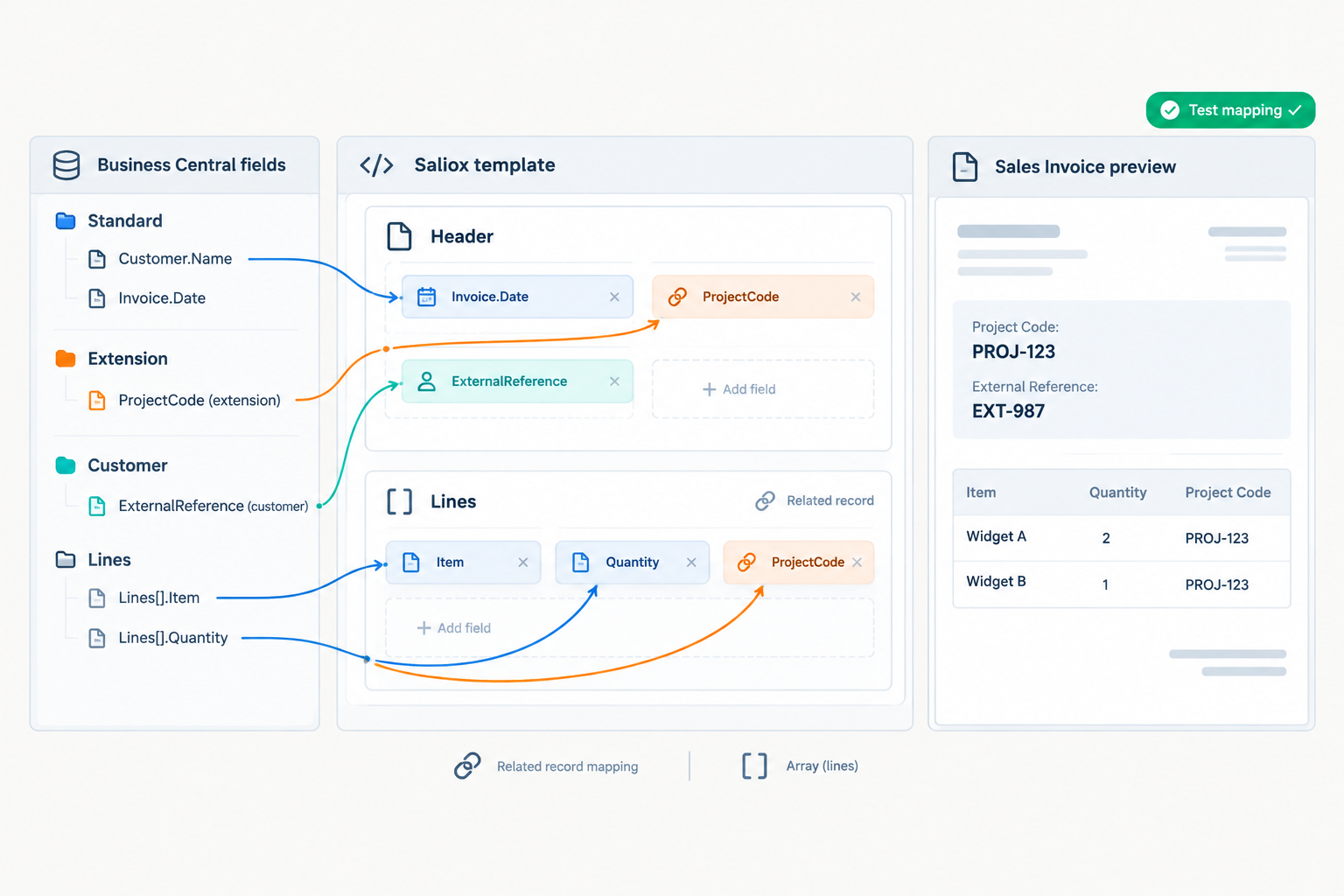
How to add custom field mappings in Saliox for Business Central
Business Central extensions often add useful customer or industry-specific fields. These might include a project reference, delivery instruction, certification number, external reference, or another value that needs to appear on a document.
Saliox custom field mappings let you expose those fields to your document templates. You can also create mappings with static values, which is useful for company-specific footer text, payment notes, contact details, and other fixed content.
Find the field with Business Central Page Inspection
Start by opening a Business Central page containing the field you want to use.
For example, if an extension adds a Project Code to a sales invoice:
- Open a document containing a Project Code.
- Select the field or the relevant part of the page.
- Press
Ctrl + Alt + F1. - Open the Table Fields section in the Page Inspection pane.
- Find the field and note its table number and field number.
Page Inspection shows the source table, field name, field number, data type, current value, and the extension that added the field where applicable.
Microsoft documents this feature here: Inspect pages in Business Central.
Check the current value as well as the field name. Similar field captions can exist on different tables, so this helps confirm that you have found the correct source.
Add a custom field mapping in Saliox
Once you have the table and field information, create the mapping in Business Central:
- Open Saliox Setup.
- Choose Actions, then Field Mapping.
- Add a new row.
- Select the appropriate Document Type.
- Enter the BC Table No. found through Page Inspection.
- Enter the BC Field No. found through Page Inspection.
- Enter a JSON Key that matches the variable used in the Saliox template.
- Turn on Header Field if the value belongs to the document header.
- Leave Header Field off if the value belongs to each document line.
- Make sure the mapping is enabled.
The JSON Key provides the connection between the Business Central field mapping and the variable used in the Saliox document template. Its spelling must match the template variable.
Use clear JSON Keys such as:
ProjectCodeExternalReferenceDeliveryInstructionCustomerCertificationNumberFooterText
Consistent names make mappings easier to understand and maintain.
Choose between header and line fields
The Header Field setting controls the context in which Saliox provides the value.
Turn on Header Field when the value applies to the entire document. Examples include:
- Project Code
- Customer reference
- Delivery address
- Payment terms
- Document-level footer text
Leave Header Field off when the value can be different for each document line. Examples include:
- Line-level external reference
- Item certification number
- Product-specific delivery instruction
- Customer item number
- Line-level project reference
Choosing the wrong context can cause a value to appear in the wrong place or prevent it from being available where the template expects it.
Example: map a Project Code
Suppose a Business Central extension adds a Project Code that should appear once on a sales invoice.
First, open an invoice containing the value and use Ctrl + Alt + F1 to find its table and field numbers.
Then create the mapping:
- Document Type: Sales Invoice
- BC Table No.: The table number shown in Page Inspection
- BC Field No.: The field number shown in Page Inspection
- JSON Key:
ProjectCode - Header Field: On
- Enabled: On
The Saliox template can now use ProjectCode as a document-level value.
Example: map an External Reference on each line
If an External Reference can differ for each invoice line, inspect the field from the line section of the Business Central document.
Create another mapping:
- Document Type: Sales Invoice
- BC Table No.: The line table number shown in Page Inspection
- BC Field No.: The line field number shown in Page Inspection
- JSON Key:
ExternalReference - Header Field: Off
- Enabled: On
Because Header Field is off, the value is available in the line context and can be added to the repeating line section of the template.
Add static company-specific values
A field mapping can also contain a Static Value.
This is useful when the content does not need to come from a Business Central record. One simple example is company-specific footer text.
Create a mapping with the JSON Key:
FooterText
Enter the required wording in Static Value and turn on Header Field, since the footer applies to the whole document.
For example:
All orders are supplied under our standard terms and conditions.
You can then switch to another Business Central company and configure the same FooterText JSON Key with a different static value:
Please quote the invoice number with all payment enquiries.
The Saliox template continues to use the same FooterText variable. Each company supplies its own wording through its field mapping.
Static values can be used for:
- Footer text
- Payment instructions
- Returns information
- Support contact details
- Legal wording
- Warehouse collection instructions
- Short company-specific messages
Use the same JSON Key in every company so the shared template can read the value consistently.
Required, order, and enabled settings
The field mapping page also provides controls for managing how each mapping is used.
Required
Mark a mapping as required when the document must receive a value for that JSON Key. Use this carefully for optional extension fields, since some documents may legitimately have no value.
Order
Set the order where mappings need to be processed or presented in a consistent sequence. Clear ordering also makes larger mapping lists easier to maintain.
Enabled
A mapping must be enabled before it is used. This setting also gives you a simple way to stop exposing a mapping without deleting its configuration.
Test the mapping
Test the document with representative Business Central records before publishing the layout.
Check that:
- The JSON Key exactly matches the template variable.
- The selected document type is correct.
- The table and field numbers match Page Inspection.
- Header values appear once per document.
- Line values appear on the correct document lines.
- Optional values do not leave unwanted labels or gaps.
- Required mappings contain a value.
- Static values change correctly between companies.
- The mapping is enabled.
- The printed Business Central document matches the Saliox preview.
If the wrong value appears, return to Page Inspection and confirm the table and field numbers. If no value appears, check the JSON Key, Header Field setting, document type, and Enabled setting.
A practical way to support customer-specific fields
The complete process is:
- Open the field in Business Central.
- Press
Ctrl + Alt + F1to inspect its source. - Record the table and field numbers.
- Open Saliox Setup.
- Choose Actions, then Field Mapping.
- Select the document type, table number, and field number.
- Enter the J